
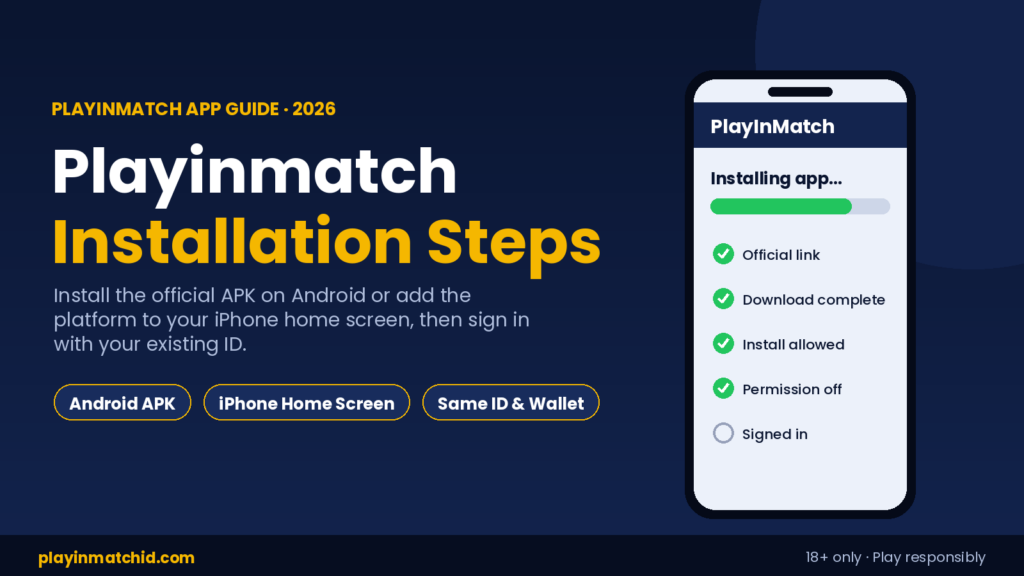
Installing the PlayInMatch app takes less than five minutes, but small mistakes along the way cause most of the questions our support desk answers every evening: a download that stopped at 90 percent, a phone that refuses to install, or a warning screen that looks frightening. This guide walks through the exact Playinmatch installation steps we give players every day, for both Android and iPhone, so you can get it right the first time.
You will learn what the app is, how to prepare your phone, where the install setting hides on popular brands such as Samsung, Xiaomi, Vivo and Realme, which warnings are normal, and how to fix the errors that stop an install. If you already have a verified cricket ID, you can be signed in to the app before your next match starts.
What Installing the PlayInMatch App Actually Involves
The PlayInMatch app is the mobile version of the same platform you open in a browser. Your username, password, wallet balance and bet history are identical in both places, so there is nothing to transfer and no second account to create. The app simply puts everything one tap away, keeps you signed in between visits and can alert you when a match starts or a bet settles.
Because betting apps are not listed on the Google Play Store in India, the Android app is distributed as an APK file that you install yourself. This is standard for the category, but it means the source of the file matters more than anything else. For a broader overview of features and versions, our complete app guide covers the app itself; this article focuses only on installing it correctly.
Who This Guide Is For
- First-time players who have just received a PlayInMatch ID and want the app on their phone.
- Existing players moving to a new phone or reinstalling after an error.
- iPhone users who want app-style access without searching for an app that does not exist.
Before You Start: A Two-Minute Readiness Check
Four quick checks prevent the failures we see most often. Run through them before you tap any download link.
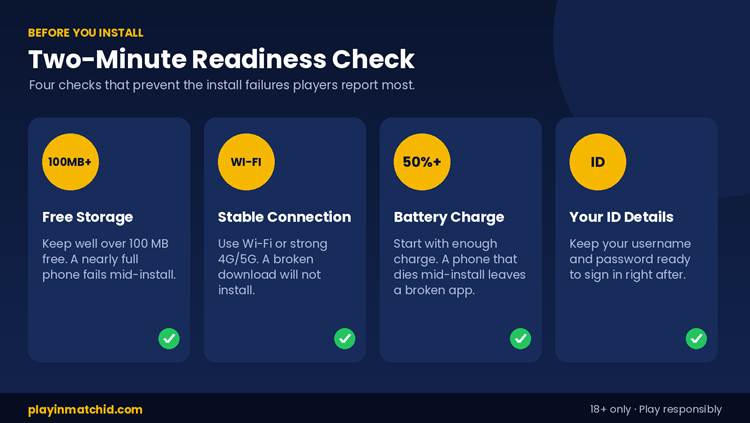
- Free storage: keep well over 100 MB free. Installs started on a nearly full phone often stop part-way and leave a broken file behind.
- Stable connection: download over home Wi-Fi or a strong 4G/5G signal. An interrupted download produces a file that will not install.
- Battery charge: start with enough charge to finish. A phone that switches off mid-install leaves a half-installed app.
- Your ID details: keep your username and password ready. If you do not have an account yet, request a new ID first, because you cannot register inside the app.
| Requirement | What you need |
| Operating system | Android 6.0 or newer on most devices; any iPhone with Safari |
| Free storage | Around 100 MB, plus room to spare |
| Connection | Stable Wi-Fi, 4G or 5G |
| Account | An active PlayInMatch ID |
Playinmatch Installation Steps for Android
These are the same six steps our team walks players through on WhatsApp. Follow them in order, and do not skip step five.
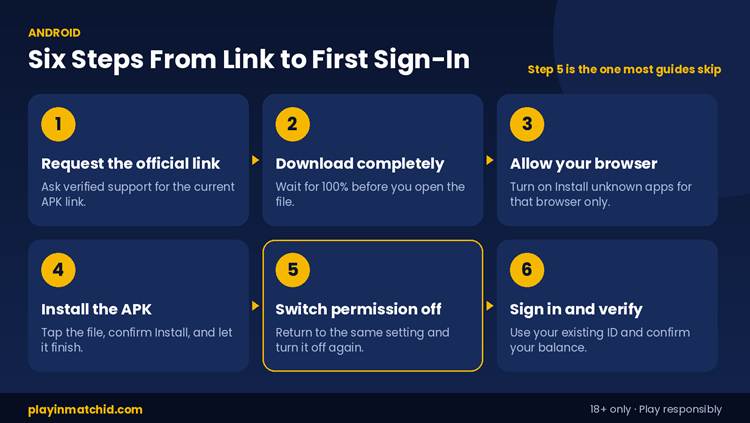
Step 1: Request the Official Download Link
Message our support desk and ask for the current app link. Start only from the contact published on playinmatchid.com. Links forwarded by other players, posted in groups, or found on APK mirror sites are where modified copies circulate.
Step 2: Download the File Completely
Tap the link and wait until your browser shows the download as finished. Do not open the file while it is still downloading. Your browser may warn that this type of file can harm your device; that notice appears for every APK on every Android phone and describes the installation method, not this particular app.
Step 3: Allow Your Browser to Install Apps
When you open the file, Android asks for permission for the browser you downloaded with, usually Chrome, to install apps. Tap Settings, turn on Allow from this source, and press back. You are giving permission to your browser only, not to the file or to every app on your phone.
Step 4: Install the APK
Tap the downloaded file again, then tap Install. On most phones this takes under a minute. Stay on the screen until you see App installed, because switching to another app mid-install is a common cause of failed installs.
Step 5: Switch the Permission Off Again
Go back to the same setting and turn Allow from this source off for your browser. It takes five seconds and closes the door behind you, so nothing else can install itself through that browser later. Most install guides leave this step out; we never do.
Step 6: Sign In and Check Your Account
Open the app and sign in with the username and password you already use. There is no separate app registration. Check that your balance and bet history match what you see on the website. If sign-in fails, our login help page covers password resets, OTP delays and locked accounts.
Where to Find the Install Setting on Popular Phones
Android 8 and newer handle this permission per app, so the setting sits under a slightly different menu on each brand. The paths below are the ones our players report most often. Menu names can change with software updates, so if a path does not match, open Settings and search for “unknown apps”.
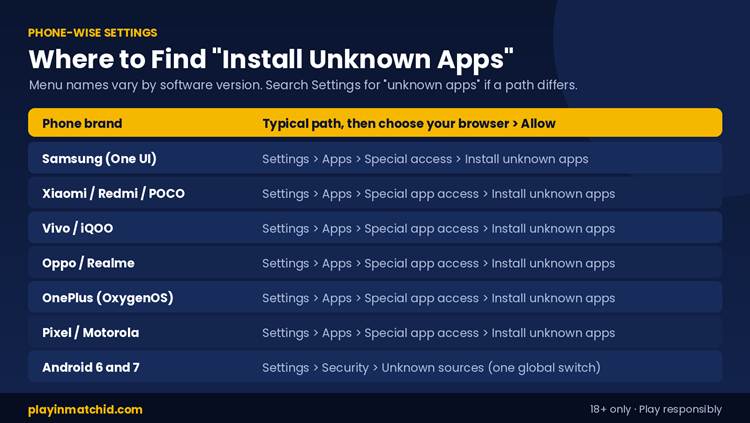
| Phone brand | Typical path (then choose your browser and turn on Allow) |
| Samsung (One UI) | Settings > Apps > Special access > Install unknown apps |
| Xiaomi, Redmi, POCO | Settings > Apps > Special app access > Install unknown apps |
| Vivo, iQOO | Settings > Apps > Special app access > Install unknown apps |
| Oppo, Realme | Settings > Apps > Special app access > Install unknown apps |
| OnePlus (OxygenOS) | Settings > Apps > Special app access > Install unknown apps |
| Google Pixel, Motorola | Settings > Apps > Special app access > Install unknown apps |
| Android 6 and 7 | Settings > Security > Unknown sources (a single switch for all apps) |
On Android 6 and 7 the setting is one global switch rather than a per-browser permission, which makes step five even more important. Turn Unknown sources off as soon as the app is installed.
Understanding the Warnings You May See
Warnings are the moment most players stop and message us, so it helps to know which ones are routine and which ones are a reason to pause.
Browser Download Warning
A message such as “This type of file can harm your device” appears for every APK downloaded through a browser. It is expected. Continue only if the link came from official PlayInMatch support.
Google Play Protect Prompts
Play Protect may offer to scan an app installed from outside the Play Store, or show a notice that the app is unrecognized. A scan is a sensible extra check, so let it run. If Play Protect blocks the file outright, do not force it through; delete the file and ask support to confirm you have the current official build.
Android’s New Developer Verification Rules
Google has announced developer verification for apps installed outside the Play Store on certified Android phones. The first checks took effect on 30 September 2026 in Brazil, Indonesia, Singapore and Thailand, and Google plans a worldwide rollout from 2027. India is not part of the current phase, so the steps in this guide work as written today. If the installation flow on Indian phones changes, we will update these steps and notify players through official support.
Check the App’s Permissions After Installation
A genuine betting app needs very little access to work. Open Settings > Apps > PlayInMatch > Permissions once after installing and compare what you see with the list below.
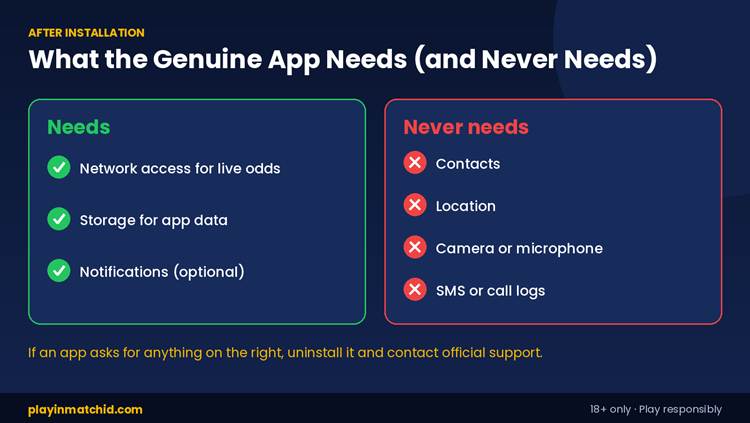
- Needs: network access for live odds, storage for app data, and notifications if you want match alerts.
- Never needs: your contacts, location, camera, microphone, SMS or call logs.
- Red flag: an app that asks you to create a brand new account or enter bank details on first launch is not the genuine PlayInMatch app. Uninstall it immediately.
Playinmatch Installation Steps for iPhone
There is no PlayInMatch app on the Apple App Store in India, and an “iOS APK” is not a real thing, because APK files cannot run on an iPhone. Any site offering one is not ours. iPhone users get app-style access through Safari instead, and it works very well.
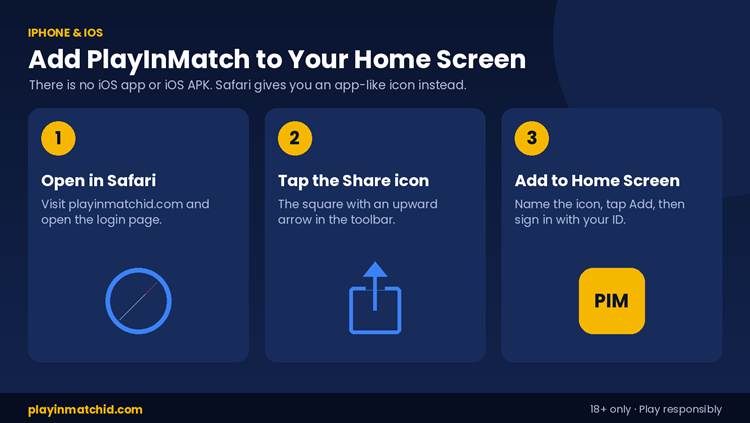
- Open Safari and go to playinmatchid.com, then open the login page.
- Tap the Share icon, the square with an upward arrow, in the Safari toolbar.
- Scroll down, tap Add to Home Screen, keep or edit the name, and tap Add.
- Open the new icon from your home screen and sign in with your existing ID.
The icon opens full-screen without browser bars and gives you every market, your wallet and your full bet history. The only differences from the Android app are that push notifications are not available and the session may ask you to sign in more often.
Fixing Common Installation Errors
If an install fails, match what you see on screen with the table below. These are the errors players actually send us, along with the fix that usually works first time.
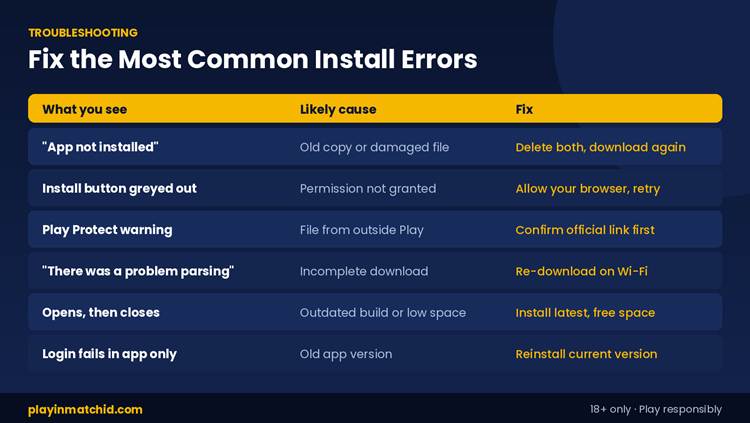
| What you see | Likely cause | What to do |
| “App not installed” | An older copy or a damaged file | Uninstall the old app, delete the old file, download again |
| Install button is greyed out | Install permission not granted | Allow your browser under Install unknown apps, then retry |
| “There was a problem parsing the package” | Incomplete or corrupted download | Download again on stable Wi-Fi and wait for 100% |
| Play Protect blocks the file | File not recognized outside Play | Delete it and confirm the official link with support |
| App opens, then closes | Outdated build or very low storage | Install the latest version and free up space |
| Login fails only in the app | Old app version | Reinstall the current version and sign in again |
Still stuck? Send support your phone model, Android version and a screenshot of the error. Those three details usually solve the problem in a single reply. Never include your password in any message.
App or Mobile Browser: Which Setup Suits You?
Neither option gives you better odds or extra markets; your ID and wallet are the same either way. The choice comes down to how often you play.
| Android app | Mobile browser | |
| Installation | Download and install an APK | Nothing to install |
| Opening speed | One tap from the home screen | Open the browser, then the site |
| Stays signed in | Yes, between sessions | Signs out more often |
| Match alerts | Available | Not available |
| Updates | Install each new version yourself | Always current |
| Works on iPhone | No | Yes, via Add to Home Screen |
Choose the app if you follow live session markets regularly and want alerts. Stay on the browser if you play occasionally, use an iPhone, are short on storage or share your phone with others.
After Installation: Set Up Your First Session
A few minutes of setup now saves time on match day.
- Change your password if you are still using the temporary one sent with your ID, and do not reuse a password from another site.
- Save the official support number in your contacts so you never have to search for it during a match.
- Add funds safely by following our payment steps, paying only to details shown in your dashboard or shared by official support.
- Set deposit limits before a big tournament through our spending limit tools, so your play stays inside a budget you chose in advance.
- Update before big fixtures: APK apps do not update automatically, so ask support for the latest build before a tournament starts rather than during a match.
Why Players Install PlayInMatch From the Official Source
PlayInMatch has served players since 2017, and every installation question in this guide comes from real conversations handled by our team. Over that time one pattern has never changed: the players who run into trouble almost always downloaded a file from somewhere other than official support. A modified APK can look exactly like the real app while recording what you type.
Installing from the official link protects more than your phone. Withdrawals on PlayInMatch are paid only to a bank account or UPI ID in the registered player’s own name, so your winnings stay protected even if someone else learns your password. Unverified ID sellers and look-alike apps rarely offer that safeguard.
Get the Official PlayInMatch App Link
Ready to install? Message official support on WhatsApp for the current download link and step-by-step help. Our team is available around the clock, including late on big match nights, and can walk you through every step in this guide on your own phone.
Frequently Asked Questions
How long do the Playinmatch installation steps take?
Usually under five minutes from requesting the link to signing in. Unofficial APK sites often take longer because of redirects, ads and fake download buttons; the official link from PlayInMatch support goes straight to the file.
Is the PlayInMatch APK safe to install?
Yes, when it comes from the official link shared by PlayInMatch support. Files from mirror sites or chat groups can be modified, which is why we only distribute the app through verified support.
Can I install the PlayInMatch app on an iPhone?
There is no iOS app, but Safari’s Add to Home Screen gives you a full-screen PlayInMatch icon with every market and your wallet. Sites selling an “iOS APK” are fake.
Why does my phone say “App not installed”?
An older copy or a damaged download is the usual cause. Delete both, download the file again from the official link, and install it once the download has fully finished.
Do I need to register again inside the app?
No. PlayInMatch uses the same ID across app, browser and desktop. Any app that asks you to create a new account is not the genuine PlayInMatch app.
Will Google’s new sideloading rules stop the app working in India?
Not at present. Google’s developer verification began in four other countries in September 2026, with a global rollout planned from 2027. PlayInMatch support will share updated steps if the process changes.
Is the PlayInMatch app better than using the browser?
The app opens faster, stays signed in and sends match alerts, which suits regular players. The browser needs no install and works on iPhone. Both use the same PlayInMatch ID and wallet.